
Blog
Home / Blog
What is a passkey?
You may have heard quite a lot about passkeys recently. Microsoft, Google, Apple and other technology companies are encouraging us to use them instead of passwords and texted security codes.
But what exactly is a passkey and is it going to make signing in easier or more complicated?
A passkey is a replacement for a password
A passkey lets you sign in to an account using a trusted phone, computer or security key.
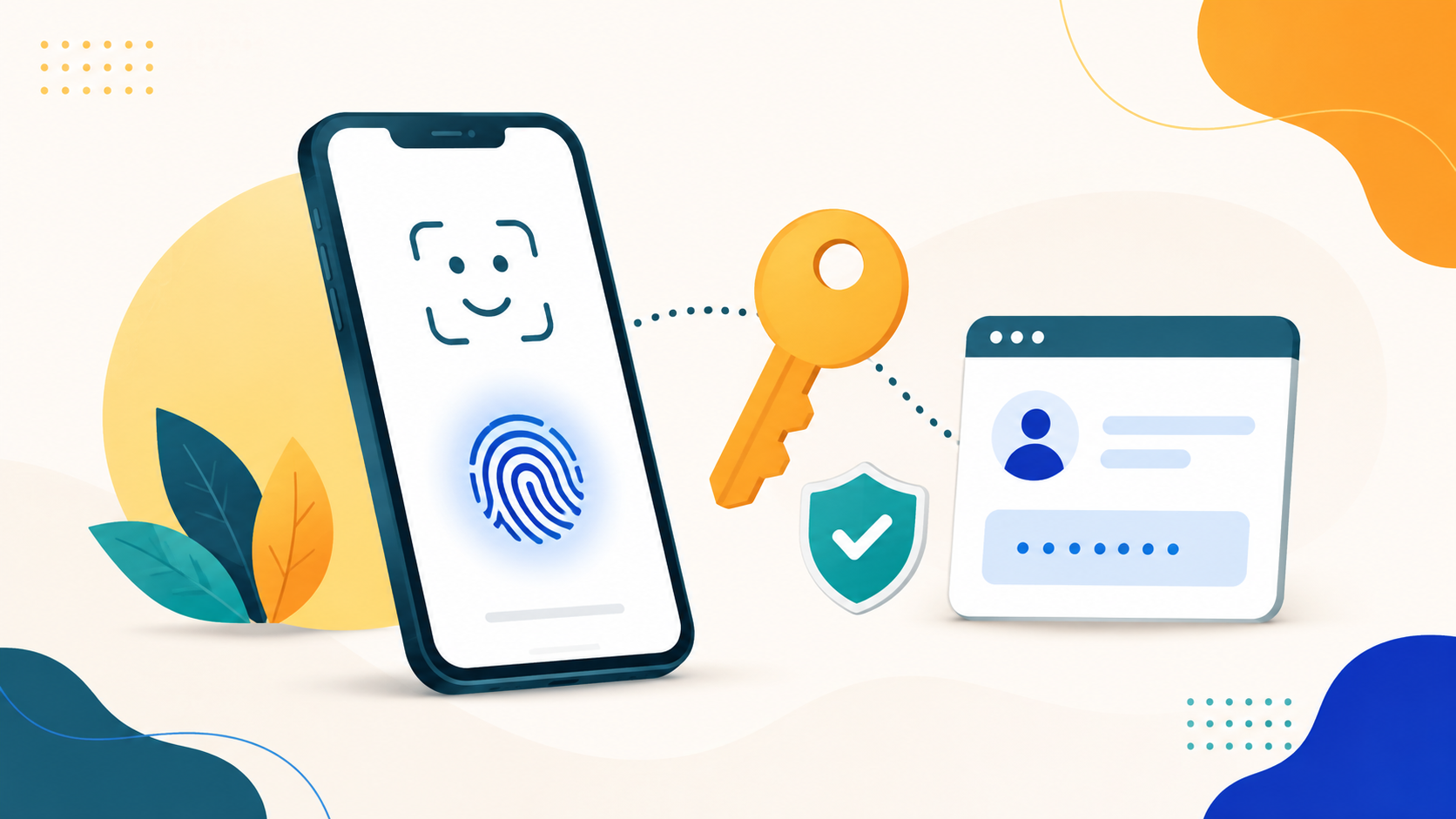
Instead of typing a password and then waiting for a code by text message, you confirm that it’s you in the same way you unlock your device. This might be:
Your face
Your fingerprint
Your device PIN
The important difference is that there isn’t a password for you to remember, type or accidentally give away.
How does it work?
Think of a passkey as a secure digital key stored on your device.
When you sign in, the website checks that your device has the correct key. You then use your face, fingerprint or PIN to give the device permission to use it.
Your fingerprint, face or PIN isn’t sent to the website. It simply unlocks the passkey on your device.
It’s a little like using a bank card. Your PIN isn’t the card itself - it just proves that you’re allowed to use it.
Why are passkeys more secure?
Passwords can be guessed, reused or stolen. They can also be handed over through a convincing fake sign-in page.
Text-message security codes are better than relying on a password alone, but criminals can still intercept or redirect them.
Passkeys are much harder to steal because they are securely linked to the genuine website or service. A fake Microsoft sign-in page, for example, shouldn’t be able to trick your device into using a passkey created for the real Microsoft website.
This is why passkeys are often described as “phishing-resistant”. In plain English, they are much less likely to be fooled by a fake sign-in page.
Does this mean I won’t need a password?
Eventually, that is the idea 🎉
For the moment, you may find that some accounts let you use a passkey while still retaining a password as an alternative. Different services are introducing them at different speeds.
You also won’t necessarily use a passkey every time you open Outlook or another application. Once you have signed in on a trusted device, it will usually remember you unless there is a reason to check your identity again.
What happens if I change my phone?
This is understandably one of the first questions we are asked.
Changing your phone won’t mean losing your account permanently. Depending on how the passkey was stored, it may securely synchronise to your new device. In other cases, you will need to register a new passkey.
Where possible, set up the new phone before wiping or returning the old one.
If you no longer have the old phone, your IT admin can help you regain access and register the replacement. Businesses should make sure they have a sensible recovery process in place before moving everyone to passkeys.
Can I have more than one passkey?
In many cases, yes. You may be able to register more than one phone, computer or physical security key.
The options available will depend on the particular account and, for a work account, the settings chosen by your organisation.
Having another approved way to sign in can be useful if your main device is lost, damaged or replaced.
Is a passkey the same as the Microsoft Authenticator app?
Not quite.
Microsoft Authenticator can store and use a passkey, but a passkey is the secure digital credential itself. Passkeys can also be stored in other supported places, including a phone, computer, password manager or physical security key.
Your organisation’s Microsoft 365 administrator will decide which options are allowed for work accounts.
Why is everyone talking about passkeys now?
Microsoft has announced that it will retire its own text-message and telephone-call authentication for Microsoft 365 work accounts on 1 February 2027. Passkeys will become the recommended replacement.
From September 2026, people who currently approve Microsoft 365 sign-ins by text or telephone may start being prompted to create one.
There is no need to panic or try to set one up without guidance. If you are affected, you should hear from your Microsoft 365 administrator or IT provider before the change takes effect.
In summary...
A passkey is a safer and often simpler alternative to a password or texted security code.
It uses a device you trust and the familiar face, fingerprint or PIN check you already use to unlock it. There is less to remember, less to type and much less for a criminal to steal.
The name may be unfamiliar, but using one should feel surprisingly familiar.
Need help preparing your business for the move to passkeys? We can review your Microsoft 365 sign-in methods, identify who will be affected and help your users make the change.

How Can We Help?
Call us at 01483 346910 or fill out the form below.
Featured Posts
What is a passkey?
You may have heard quite a lot about passkeys recently. Microsoft, Google, Apple and other technology companies are encouraging us to use them instead of passwords and texted security codes.
But what exactly is a passkey and is it going to make signing in easier or more complicated?
A passkey is a replacement for a password
A passkey lets you sign in to an account using a trusted phone, computer or security key.
Instead of typing a password and then waiting for a code by text message, you confirm that it’s you in the same way you unlock your device. This might be:
Your face
Your fingerprint
Your device PIN
The important difference is that there isn’t a password for you to remember, type or accidentally give away.
How does it work?
Think of a passkey as a secure digital key stored on your device.
When you sign in, the website checks that your device has the correct key. You then use your face, fingerprint or PIN to give the device permission to use it.
Your fingerprint, face or PIN isn’t sent to the website. It simply unlocks the passkey on your device.
It’s a little like using a bank card. Your PIN isn’t the card itself - it just proves that you’re allowed to use it.
Why are passkeys more secure?
Passwords can be guessed, reused or stolen. They can also be handed over through a convincing fake sign-in page.
Text-message security codes are better than relying on a password alone, but criminals can still intercept or redirect them.
Passkeys are much harder to steal because they are securely linked to the genuine website or service. A fake Microsoft sign-in page, for example, shouldn’t be able to trick your device into using a passkey created for the real Microsoft website.
This is why passkeys are often described as “phishing-resistant”. In plain English, they are much less likely to be fooled by a fake sign-in page.
Does this mean I won’t need a password?
Eventually, that is the idea 🎉
For the moment, you may find that some accounts let you use a passkey while still retaining a password as an alternative. Different services are introducing them at different speeds.
You also won’t necessarily use a passkey every time you open Outlook or another application. Once you have signed in on a trusted device, it will usually remember you unless there is a reason to check your identity again.
What happens if I change my phone?
This is understandably one of the first questions we are asked.
Changing your phone won’t mean losing your account permanently. Depending on how the passkey was stored, it may securely synchronise to your new device. In other cases, you will need to register a new passkey.
Where possible, set up the new phone before wiping or returning the old one.
If you no longer have the old phone, your IT admin can help you regain access and register the replacement. Businesses should make sure they have a sensible recovery process in place before moving everyone to passkeys.
Can I have more than one passkey?
In many cases, yes. You may be able to register more than one phone, computer or physical security key.
The options available will depend on the particular account and, for a work account, the settings chosen by your organisation.
Having another approved way to sign in can be useful if your main device is lost, damaged or replaced.
Is a passkey the same as the Microsoft Authenticator app?
Not quite.
Microsoft Authenticator can store and use a passkey, but a passkey is the secure digital credential itself. Passkeys can also be stored in other supported places, including a phone, computer, password manager or physical security key.
Your organisation’s Microsoft 365 administrator will decide which options are allowed for work accounts.
Why is everyone talking about passkeys now?
Microsoft has announced that it will retire its own text-message and telephone-call authentication for Microsoft 365 work accounts on 1 February 2027. Passkeys will become the recommended replacement.
From September 2026, people who currently approve Microsoft 365 sign-ins by text or telephone may start being prompted to create one.
There is no need to panic or try to set one up without guidance. If you are affected, you should hear from your Microsoft 365 administrator or IT provider before the change takes effect.
In summary...
A passkey is a safer and often simpler alternative to a password or texted security code.
It uses a device you trust and the familiar face, fingerprint or PIN check you already use to unlock it. There is less to remember, less to type and much less for a criminal to steal.
The name may be unfamiliar, but using one should feel surprisingly familiar.
Need help preparing your business for the move to passkeys? We can review your Microsoft 365 sign-in methods, identify who will be affected and help your users make the change.